Upload a GIF, choose how much quality and motion to keep, and download a smaller file for sharing, email, or your website. The GIF compressor shows the source details first, then lets you adjust FPS, color detail, and denoise before processing.
or choose a file from your device
GIF only · up to 50 MB · files are processed temporarily
GIF compressor examples
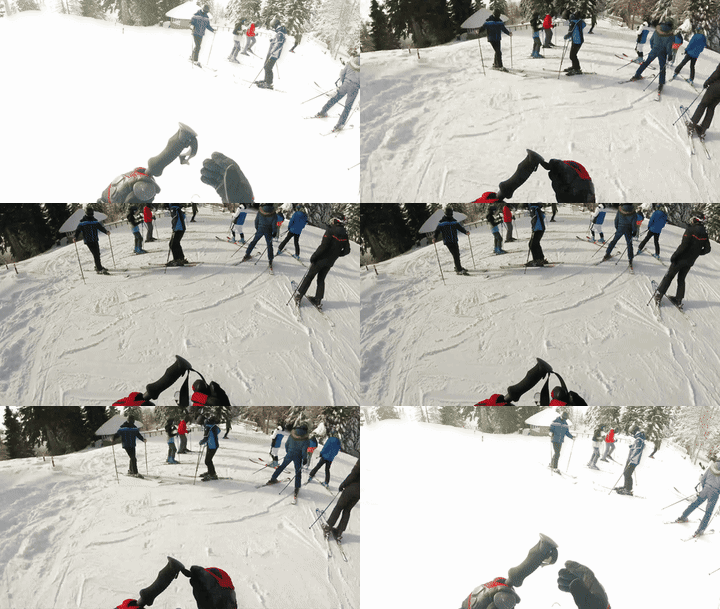
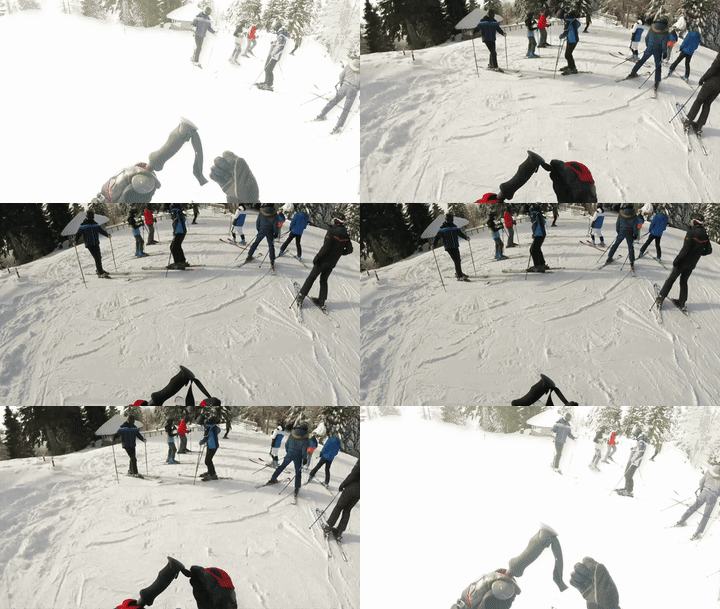
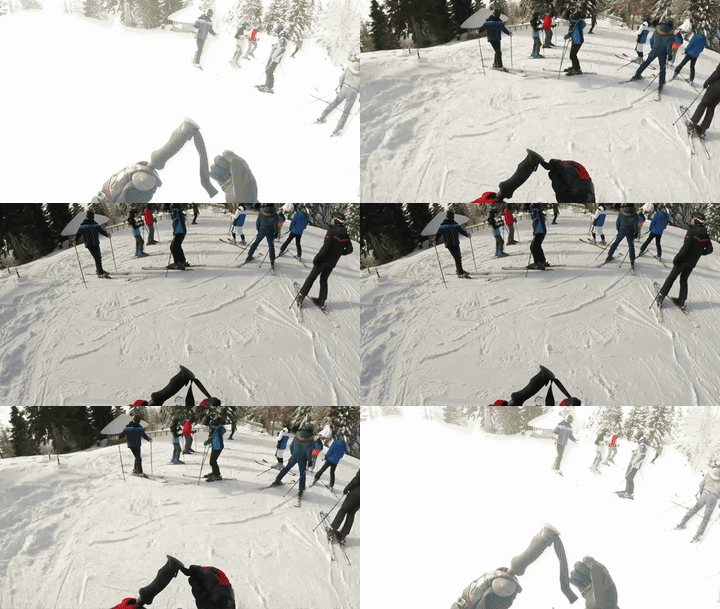
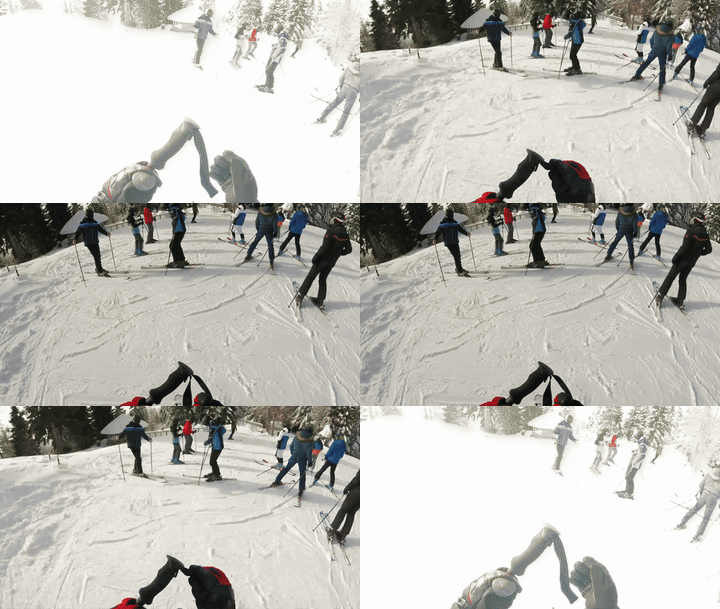
These GIF compressor examples use different fixed-camera scenes, with motion in the subject rather than a moving viewpoint.

24 colors · 240 × 135 · 737 KB

64 colors · 320 × 180 · 1.7 MB

128 colors · 400 × 225 · 3.5 MB

256 colors · 480 × 270 · 5.8 MB

Minimum motion rate · 433 KB

Low-bandwidth motion · 1.1 MB

Balanced motion · 1.8 MB

Source-rate motion · 2.7 MB
This GIF compressor makes a few measurable decisions visible. The GIF compressor explanations show what each control changes, so a smaller file does not come as a surprise.
The GIF compressor rebuilds every frame around a compact palette and an output size that you choose. Flat illustrations often shrink dramatically; noisy photographs usually need more colors to avoid banding.
In the GIF compressor, the FPS control samples frames at even intervals. A high-FPS source is thinned proportionally, while very slow animations keep a usable minimum of 2 FPS instead of becoming a still image.
The GIF compressor can encounter truncated or malformed frames. Its encoder skips frames it cannot decode and re-encodes the remaining sequence, so a damaged upload can still produce a usable file.
The GIF compressor result page keeps original and output bytes, frame rate, dimensions and savings together. Use that report to decide whether to keep the current settings or run a second pass.
A GIF compressor export is a standard GIF with no watermark or account requirement. It is ready for a chat upload, an email attachment or a page where a lighter asset matters.
The GIF compressor uses uploads only for the conversion request and does not present them as a public gallery. Keep your source file locally until you have checked the downloaded result.
The GIF compressor follows three short steps, with the important trade-offs visible before export. This keeps the GIF compressor workflow easy to repeat.
Drop a GIF up to 50 MB. The GIF compressor reads its header and frame timing to show dimensions, duration, colors and an estimated source FPS before you change anything.
Move the GIF compressor FPS and quality sliders, then pick a denoise mode if the source has compression noise. Lower FPS affects motion; fewer colors affect edges and gradients.
The GIF compressor result page shows the new file size and playback details. The GIF compressor preview lets you inspect the loop in context, then download it with a descriptive filename.
The right GIF compressor export depends on how the animation will be delivered, not on a universal “maximum compression” setting. The GIF compressor is designed for that deliberate choice.
Start with the GIF compressor Balanced preset, then lower FPS until the file fits the service limit. Check text and faces at 100% before posting; motion artifacts are more visible in chat previews than on a desktop.
Use the GIF compressor to keep dimensions modest and remove excess frames first. A lighter animation improves transfer time, but always provide a reduced-motion fallback when the GIF is decorative rather than essential.
The GIF compressor preserves readable labels and UI edges with Higher or Best quality. If the demo contains long pauses, trimming those pauses usually saves more bytes than aggressive color reduction.
Use the GIF compressor Smallest setting for reference copies and keep the source beside it. Re-encoding an already reduced GIF repeatedly compounds palette and timing loss.
Details that help you choose a sensible GIF compressor export.
The GIF compressor can remove more data from GIFs with repeated backgrounds and few colors. Grainy footage, gradients and long animations leave less room to shrink without visible changes. The result page shows the actual reduction for your file.
The GIF compressor quality control changes palette detail and output dimensions; FPS changes temporal smoothness. For text or faces, keep quality higher and lower FPS first. For simple icons, fewer colors are usually safe.
A GIF compressor conversion request is temporary and the result is kept in your browser for the download step. We do not publish uploads as a gallery. Keep your own source until the output is checked.
The GIF compressor accepts GIF files up to 50 MB. Very long or high-resolution animations may still take longer to decode, especially on mobile hardware.
In the GIF compressor, begin with Balanced, then move the FPS slider down in small increments. This often preserves edges better than immediately cutting the color palette. Confirm the downloaded byte size before uploading.
Yes, the GIF compressor runs in a current browser. Large files can use substantial memory, so keep the tab open while the result is prepared and download it before closing the page.
The GIF compressor encoder can omit frames that fail to decode and rebuild the playable sequence. Recovery is best-effort: a file truncated before its trailer may lose its final frames.
No. The GIF compressor output is a standard GIF without branding, and the basic workflow does not require registration.
Use the GIF compressor to reduce size for sharing and auto-repair corrupted GIF frames when possible. The GIF compressor is free to use with no watermark.
Compress GIF Free